

SketchUp extensions can shorten a particular modelling task, but a long plugin list is not a tested workflow. This directory groups 23 tools by their purpose and explains installation, native alternatives and the checks to make before using an extension on a project. Some are free, some require a licence, and older tools may not support your installed release. This is a documented task directory, not a hands-on benchmark of all 23 extensions.
SketchUp is one of the most approachable tools in the wider field of architectural design software. Its push/pull modelling is quick to learn, but as projects become more complex the default toolset can start to slow you down, so it helps to identify the exact repetitive task before adding an extension.
That is where SketchUp plugins come in; SketchUp itself calls them extensions. They are add-ons, mostly written by independent developers, that add tools SketchUp does not include out of the box: extruding many faces at once, offsetting in 3D, bending a component along a curve, or cleaning up stray edges after a CAD import. Once you know which plugin handles which job, repetitive tasks such as multiple push/pulls, offsets and arrays take seconds rather than minutes.
[irp posts=’132648′]
Plugins by task: modelling, geometry, documentation and clean-up
Choose the task first, then open the developer’s listing to check your exact SketchUp version, operating system, dependencies and licence. The table is a task index rather than a complete current compatibility matrix. Selection Toys and Shape Bender have directly checked Extension Warehouse listings; the paid Fredo6 tools are identified from the developer’s store. An advertised compatibility entry is not a test on your machine.
| Extension | Task | Decision or limitation |
|---|---|---|
| Joint Push/Pull | Extrude multiple faces | Paid Fredo6 tool; install its required libraries |
| Multiple Offsets | Offset faces | Check the developer listing and native Offset first |
| CLF Shape Bender | Bend along a curve | Free; listing stops at SketchUp 2018; legacy test required |
| RandomPushPull | Vary extrusion depths | Check licence and release compatibility |
| FredoScale | Stretch, taper and twist | Paid Fredo6 tool; verify library requirements |
| Soap Skin & Bubble | Generate a surface across boundary edges | Check current terms; discard old expiry claims |
| Curviloft | Loft and skin selected curves | Paid Fredo6 tool |
| LSS Matrix | Repeat components in arrays | Legacy tool; test a small copy |
| QuadFace Tools | Work with quad meshes | Check supported release and geometry behaviour |
| Sketchy FFD | Deform with a control cage | Check supported release |
| Components onto Faces | Place repeated components | Check the developer listing |
| Weld | Join connected edges into a curve | Compare native Weld Edges; current extension price not asserted |
| Bezier Spline | Draw and edit curves | Distinguish it from FredoSpline |
| Mirror | Mirror geometry | Compare the native Flip tool |
| SectionCutFace | Add faces at section cuts | Compare native section fill |
| Angular Dimension | Annotate angles | Check the developer listing |
| Selection Toys | Filter and manipulate selections | Free; listing names 2022–2026 on Mac/Windows; test your setup |
| CleanUp³ | Repair and tidy geometry | Check the scope before deleting geometry |
| Purge All | Remove unused definitions | Save a copy before purging |
| Fredo Tools | Use a collection of utilities | Check the exact tools, licence and dependencies |
| Simplify Contours Tool | Reduce contour segmentation | Check accuracy against original survey data |
| Edge Tools² | Repair imported CAD linework | Check tolerances before closing gaps |
| Architect Tools | Prepare terrain and urban massing | Check current listing and scale/units |
Source: the linked developer/store pages. The table identifies tasks and verification limits; it is not a complete compatibility certification.
How to read the groups:
- Form-making and modelling (Joint Push/Pull, Multiple Offsets, Shape Bender, RandomPushPull, FredoScale, Soap Skin & Bubble, Curviloft, LSS Matrix, QuadFace Tools, Sketchy FFD, Components onto Faces). This is where most of the paid Fredo6 tools now sit, so check the licence before you build a workflow around one.
- Drawing and geometry (Weld, Bezier Spline, Mirror). Two of these now overlap with native tools. Recent SketchUp Pro versions include a native Weld Edges command, and SketchUp 2023 made the Flip command more predictable for mirroring.
- Documentation (SectionCutFace, Angular Dimension). Both are older tools for presenting sections and measuring angles. Compare them against what your SketchUp version and LayOut already do before you install.
- Clean-up, selection and site work (Selection Toys, CleanUp³, Purge All, Fredo Tools, Simplify Contours Tool, Edge Tools², Architect Tools). These keep files light and fix imported CAD linework and contours.
- Rendering. None of the plugins listed here is a renderer. Photorealistic output in SketchUp usually comes from commercial rendering extensions such as V-Ray or Enscape, which are licensed separately. Check the vendor’s current licence and trial terms before you buy.
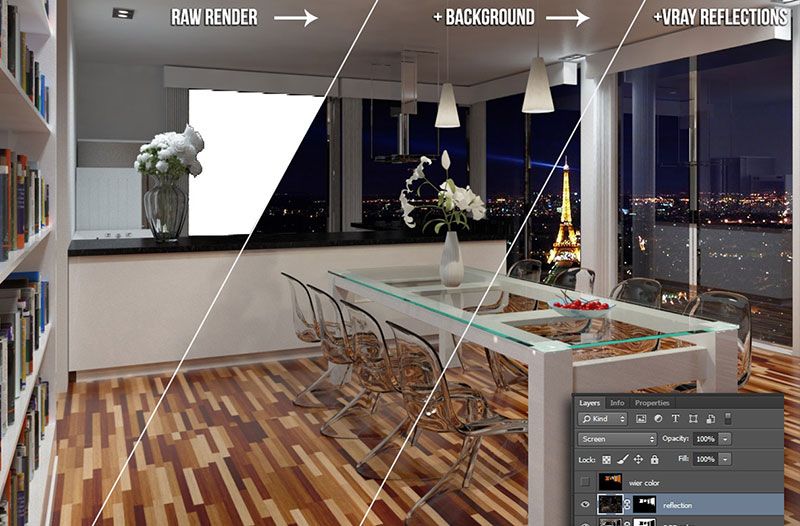
A V-Ray interior render shown in stages: the raw render, then an added night-city background, then V-Ray reflection passes combined in Photoshop. Photorealistic results like this come from separately licensed rendering tools and post-production, not from the free modelling plugins in this list. Image: V-Ray. V-Ray
Are SketchUp plugins free?
Some are free, but a free download may be a trial or need a paid activation. At this check, Selection Toys and CLF Shape Bender are labelled free in Extension Warehouse. JointPushPull, Curviloft and FredoScale are licensed products in the developer’s SketchUcation store. Confirm the exact product terms before installation; do not use an old free copy as evidence of the maintained version’s licence.
Fredo6’s JointPushPull, Curviloft and FredoScale are licensed products. Use the developer’s product pages for current dependencies and release information. An older free download or forum version list is not evidence of the maintained product’s current licence or supported releases.
The 23 SketchUp plugins in detail
The descriptions explain intended use; they do not certify operation on every SketchUp release. Plugin names link to the developer’s listing.
1. Joint Push/Pull
Joint Push/Pull offers several ways to extrude surfaces, including extruding multiple faces in parallel, and the developer provides a user manual that covers each mode. It also needs Fredo6’s LibFredo6 library. Status: now a licensed (paid) Fredo6 extension, with its current release and library requirements listed by the developer.
2. Multiple Offsets
If you know AutoCAD’s Offset command, this does a similar job on SketchUp faces. Select one or more faces and choose one of the offset methods it provides. Status: check the listing for current compatibility.
3. CLF Shape Bender
Chris Fullmer’s Shape Bender bends a group or component to follow a curve. You select the object, a straight baseline along the red axis and the target curve, and a wireframe grid previews the result before you commit. Status: free, but the listing names SketchUp 2018 as the newest compatible version (version 0.6.1 beta, dated 7 May 2013; listing last edited 13 November 2019). Treat it as a legacy tool and try it on a copy of your model first.
4. RandomPushPull
Useful for playful façade cladding and textured walls. It extrudes every selected face by a random depth between a minimum and maximum value that you enter, so you get a varied relief in a single step. Status: check the listing.
5. FredoScale
FredoScale adds scale-based transformations that SketchUp’s native Scale tool lacks, such as stretching, tapering and twisting. Status: now a licensed Fredo6 extension, with current requirements on the developer’s listing.
6. Soap Skin & Bubble
This plugin stretches a skin across a set of boundary edges, which you can then inflate or adjust into a smooth, complex surface. The old note that it was “free until April 2018” has been removed because it is out of date. Status: check the listing for current price and compatibility.
Of all the SketchUp plugins here, it is the closest digital cousin of the tensile structures Frei Otto developed, such as the cable-net roof he designed with Günter Behnisch for Munich’s 1972 Olympic Park, a net of steel cables hung from pylons.

7. Curviloft
Another Fredo6 tool that gives the simple modelling software a more parametric edge. It generates surfaces from sets of selected curves by lofting, skinning along paths or filling contours. Status: now licensed, with current requirements on the developer’s listing.
Few SketchUp plugins handle lofting as well. Lofted, continuously curving surfaces of this kind define buildings such as the Heydar Aliyev Centre in Baku, whose skin Zaha Hadid Architects designed to read as one continuous, homogeneous surface.

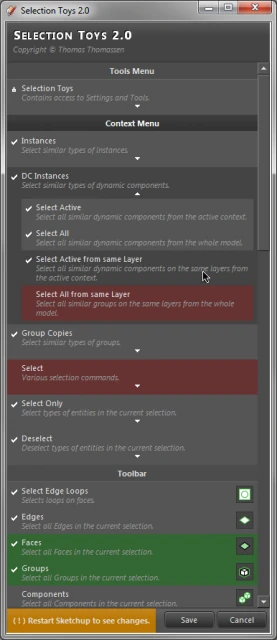
8. Selection Toys
Selection Toys adds selection filters similar to QSelect or Filter in AutoCAD. You can strip edges or faces out of a selection, or select entities that share a material, layer (tag) or component definition, which helps you avoid editing or deleting the wrong thing. Status: free, listed for SketchUp 2022 to 2026 on Mac and Windows; version 2.4.0 (4 November 2020), listing last edited 31 October 2025.
9. Weld
Like the Weld option in 3ds Max, it joins connected edges and arcs into a single curve, or “polyline”. Status: confirm the extension’s current listing; no current price or supported-version claim is made here. For basic welding, try SketchUp Pro’s native Weld Edges command first.
10. Fredo6: Bezier Spline
Bezier Spline adds polyline, Bézier and spline drawing tools, which make useful base curves for unusual forms. Do not confuse it with FredoSpline, a separate Fredo6 product that is now licensed. Status: check the listing.
11. Mirror
Mirror works like AutoCAD’s Mirror command and suits symmetrical models and parts. SketchUp’s own Flip command now covers many simple cases, so try that before installing. Status: check the listing.
12. LSS Matrix
LSS Matrix does the job of AutoCAD’s Array command, creating 3D rectilinear or radial patterns from selected components. You can use it to model spiral stairs, for example, by modelling the first two steps and letting the plugin repeat them. Status: check the listing; this is an older tool.
13. QuadFace Tools
QuadFace Tools makes non-planar, quad-based meshes easier to select and edit. That helps with form-based conceptual models, topography and furniture design. Status: check the listing.
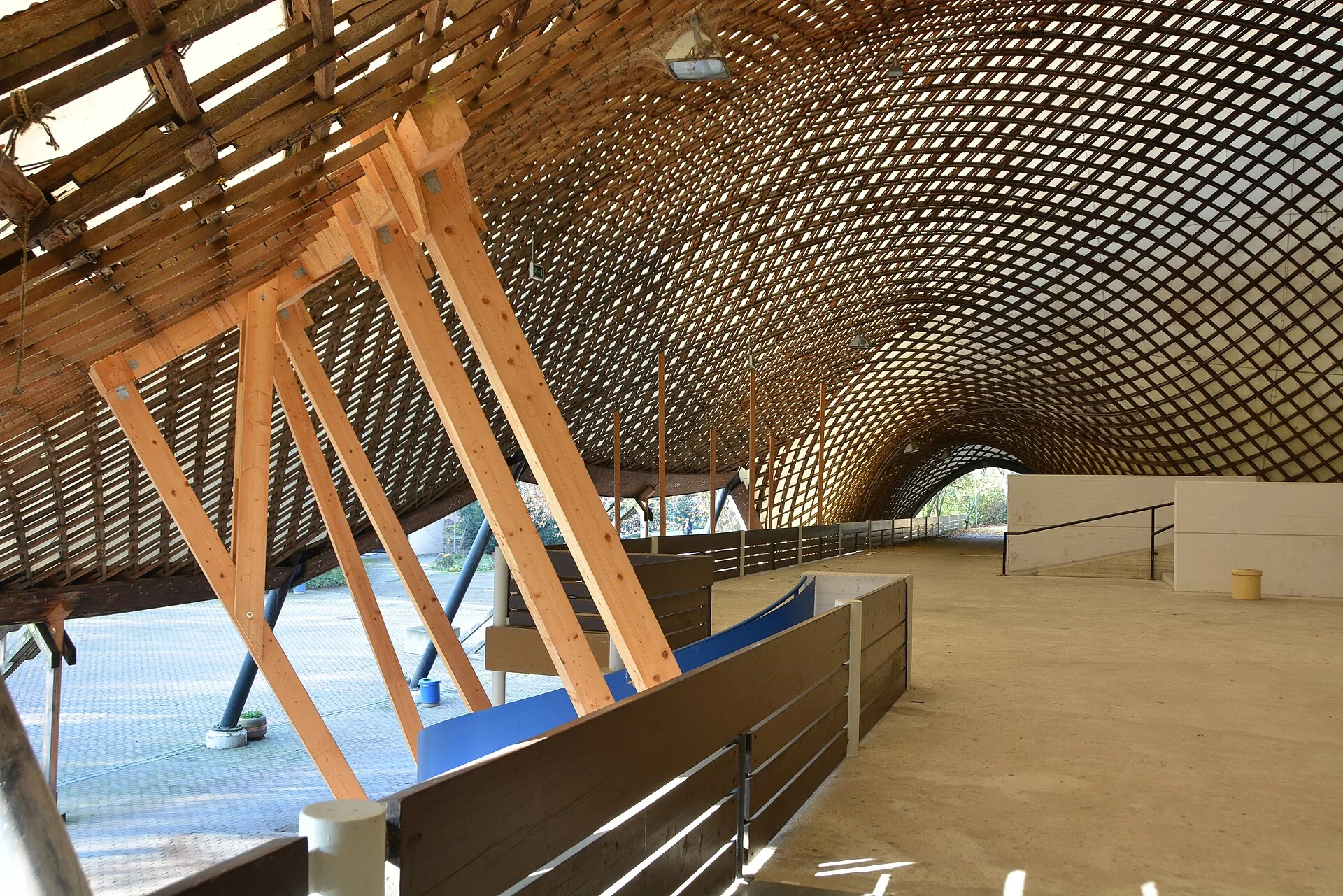
Quad meshes are also how gridshells are modelled, which makes this one of the SketchUp plugins worth knowing for structural form studies. Frei Otto’s roof for the Multihalle in Mannheim (1970–75), developed with Ove Arup & Partners, is a large timber gridshell whose lattice is made of four-sided cells.
14. Sketchy FFD
Free-form deformation: the plugin wraps your geometry in a cage of control points, and moving them reshapes the mesh inside. Status: check the listing.
15. Components onto Faces
Another Chris Fullmer tool, also listed on his Extension Warehouse developer page. It copies a single component onto every selected face, which is handy for panels, fixings or shading devices. Status: check the listing.
Panelling tools are among the most practical SketchUp plugins for facade studies, because repeating one shading or cladding module across a whole surface is how many real facades are designed and built.
16. SectionCutFace
SectionCutFace complements SketchUp’s Section Plane tool by putting a face on hollow section cuts, so 3D or 2D sections can be presented without extra editing. Newer SketchUp versions have their own section-fill setting, so check whether your version already covers what you need. Status: check the listing.
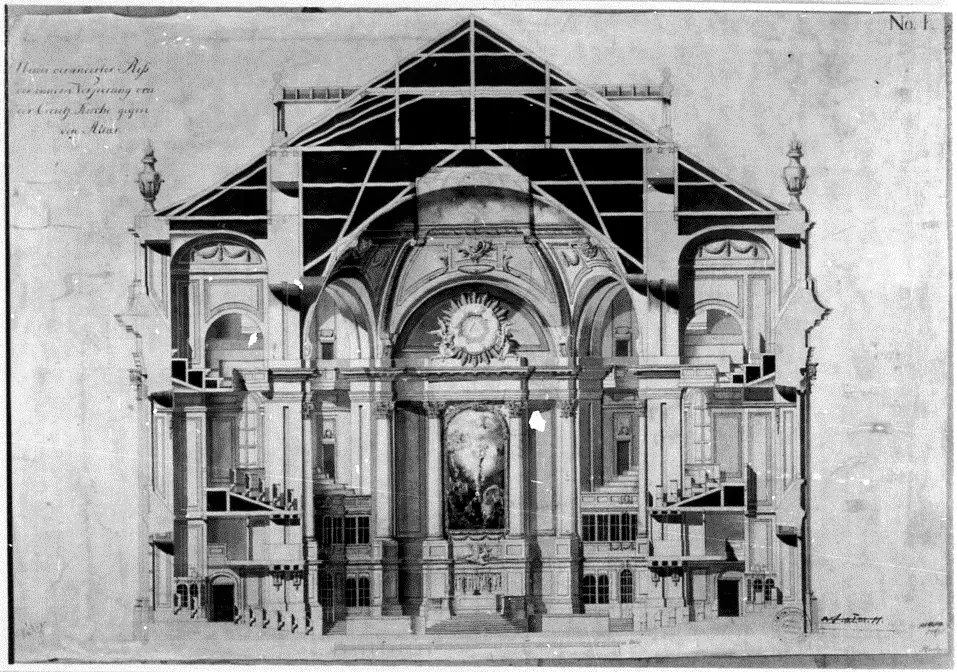
Solid-filled cuts are a convention architects have used for centuries, because they make walls and floors read instantly against the spaces they enclose.
17. Angular Dimension
This tool draws the angle between edges or surfaces: pick the vertex, then a point on each side. Status: check the listing.
18. CleanUp³
CleanUp³ tidies a model: it can remove hidden and duplicate edges, erase stray (lonely) edges and merge coplanar faces. Status: check the listing.
19. Purge All
Purge All strips out unused components, layers (tags), materials and other definitions, either all at once or only the types you choose, and can show a report of what it removed. Status: check the listing.
20. Fredo Tools
Fredo Tools collects smaller utilities by Fredo6. Read the product’s own current listing for the included tools, dependencies and licensing; the absence of a paid label in an old forum post is not proof of a current free licence.
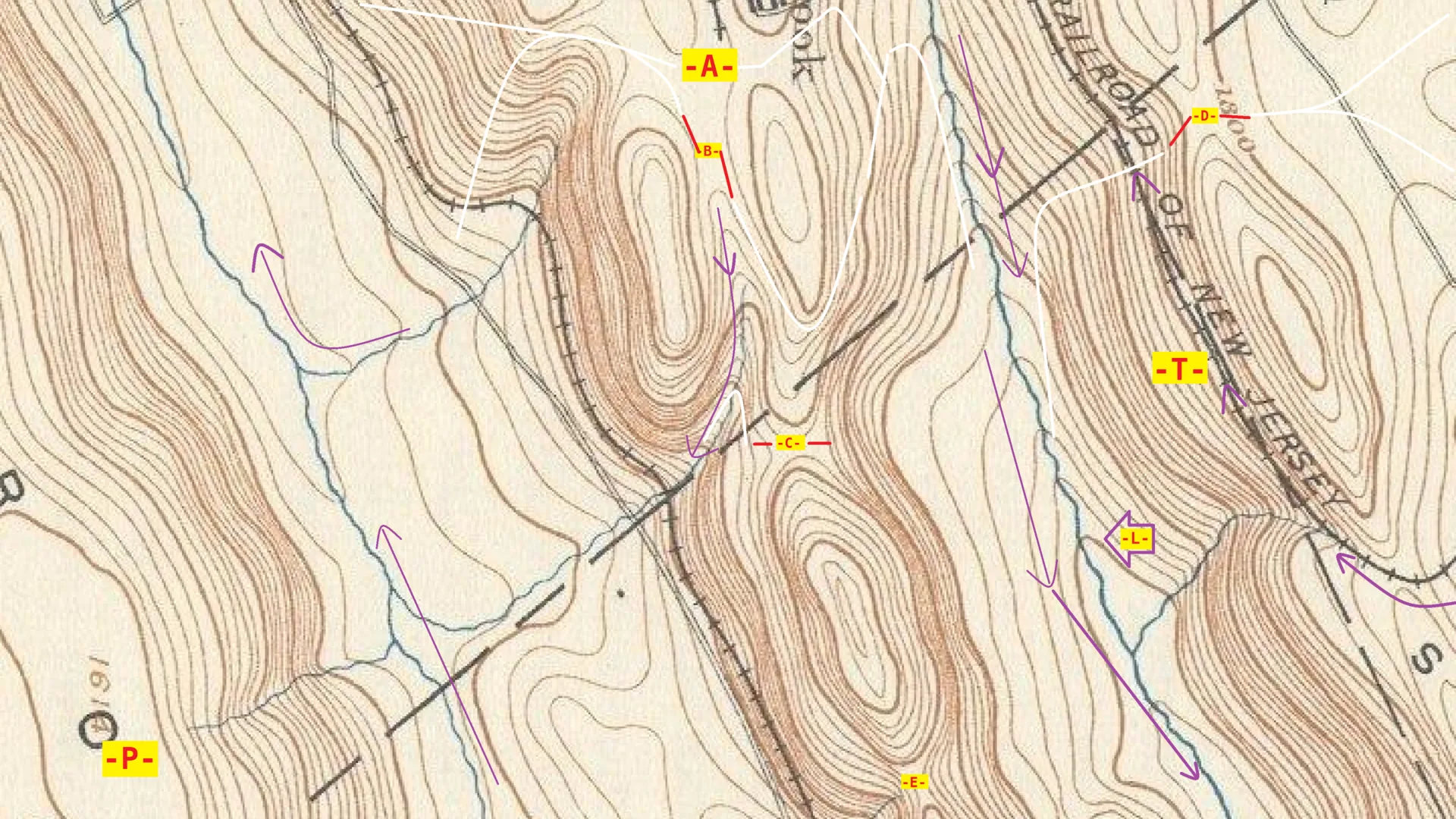
21. Simplify Contours Tool
Simplify Contours Tool reduces the number of edge segments in contour lines, which can cut file size considerably on site models. Status: check the listing.
Contour data from survey maps is often far denser than a design model needs, which is exactly where site-modelling SketchUp plugins like this one pay off.
22. Edge Tools²
Edge Tools² is useful for plans and maps imported from AutoCAD. It simplifies edges by reducing segment counts, closes small gaps and finds open ends that stop faces from forming. Status: check the listing.
23. Architect Tools
Architect Tools helps with urban-scale and site work. It generates and merges building masses and handles contours and terrain imported from 2D CAD files. Status: check the listing for price and compatibility.
How to install SketchUp plugins safely
The installation steps below follow SketchUp’s own help pages for the current desktop version; the menu names in the original version of this article are out of date. There are two routes:
- From inside SketchUp. Open the Extension Warehouse from SketchUp, find the extension and click Install (you may be asked to sign in with your Trimble account). The extension appears in the Extension Manager once it has installed.
- Manually, from an .rbz file. Download the .rbz file from the Extension Warehouse website or from the developer’s official store. SketchUp’s help confirms you can browse and download from extensions.sketchup.com without SketchUp running. Then open the Extension Manager from the Extensions menu or its toolbar icon, click Install Extension, choose the .rbz file and confirm.
- Check that the extension is enabled in the Extension Manager list. If its toolbar does not appear, restart SketchUp and look under View > Toolbars.
- For Fredo6 tools, install LibFredo6 as well. Licensed tools also need a licence or trial, which is managed through SketchUcation.
Security is controlled by the extension loading policy, found under Settings in the Extension Manager. Identified Extensions Only loads only extensions digitally signed by a registered SketchUp developer. Approve Unidentified Extensions asks you at each start-up which ones to load. Unrestricted loads everything and is the least secure setting. Many older free plugins are unsigned, so they may not load under the strictest setting. Approve them one at a time rather than switching to Unrestricted permanently.
Three further habits prevent most problems:
- Download only from the Extension Warehouse, SketchUcation or the developer’s own site. Re-hosted .rbz files can be out of date, modified or bundled with unwanted software, and “free” copies of paid extensions breach their licence.
- Match the plugin to your SketchUp version. As a SketchUcation moderator points out, the Extension Manager’s update features and the online warehouses are not supported in older SketchUp versions.
- Test new or legacy plugins on a copy of the model, and disable (rather than delete) an extension in the Extension Manager if you suspect it is causing crashes.
Extensions are installed and managed in SketchUp for Desktop. If you work in the browser-based version of SketchUp, check Trimble’s current plan comparison before you rely on any extension.
Which SketchUp plugins should you start with?
There is no single best plugin; the right one depends on the task. Start with the smallest toolset that solves your task: a selection aid and a clean-up workflow may be enough. Selection Toys is listed as free, while any clean-up extension still needs its own licence and compatibility check. Those two tasks save time on almost every model. For complex form-making, Curviloft, JointPushPull and FredoScale remain the reference tools, but budget for a licence. For bending and arrays, test legacy options such as Shape Bender and LSS Matrix on a copy of your model, and check whether native Weld Edges and Flip already do what you need.
Once your toolset is in place, practise on real geometry. These SketchUp examples of construction details are a good test bed, and more guides are collected under our SketchUp tag. Whatever you install, read the developer’s manual: most of these plugins do much more than their toolbar icons suggest.
Sources and further reading
- SketchUp Extension Warehouse (Trimble): official listings with price, compatibility and version dates
- SketchUcation PluginStore: community store hosting the Fredo6 tools and many other plugins named above
- SketchUp Help: Manually Downloading Extensions
- SketchUp Help: Loading Policy Preferences (last updated 29 September 2026)
- SketchUp Desktop 2026.0 release notes
- Fredo6: More Fredo6 plugins becoming paid extensions (SketchUp Community forum)
How to assess an extension before adding it to your workflow
Start with the task, not the length of the extension list. Record the SketchUp version, operating system, extension version, price or licence tier, and whether another library is required. Test the extension in a copy of a small model, save and reopen the result, and check that the geometry remains editable. Keep a route back to the original model. A photograph of a curved building can explain a modelling problem, but it does not demonstrate an extension working; the useful evidence is a screenshot of the actual operation and the resulting geometry.

Hadeer Shahin is the Built Projects Editor at Arch2O, where she curates innovative architectural works from around the globe. With a background in architecture from Alexandria University and hands-on experience in design and digital content, she bridges the gap between technical precision and editorial vision. Hadeer’s keen eye for spatial storytelling and her passion for contemporary design trends make her a vital contributor to Arch2O’s mission of highlighting excellence in the built environment.